Onboarding Screen Examples
Real onboarding UI from a stock market learning app - mascot-led education slides, chart literacy messaging, and first-week setup.
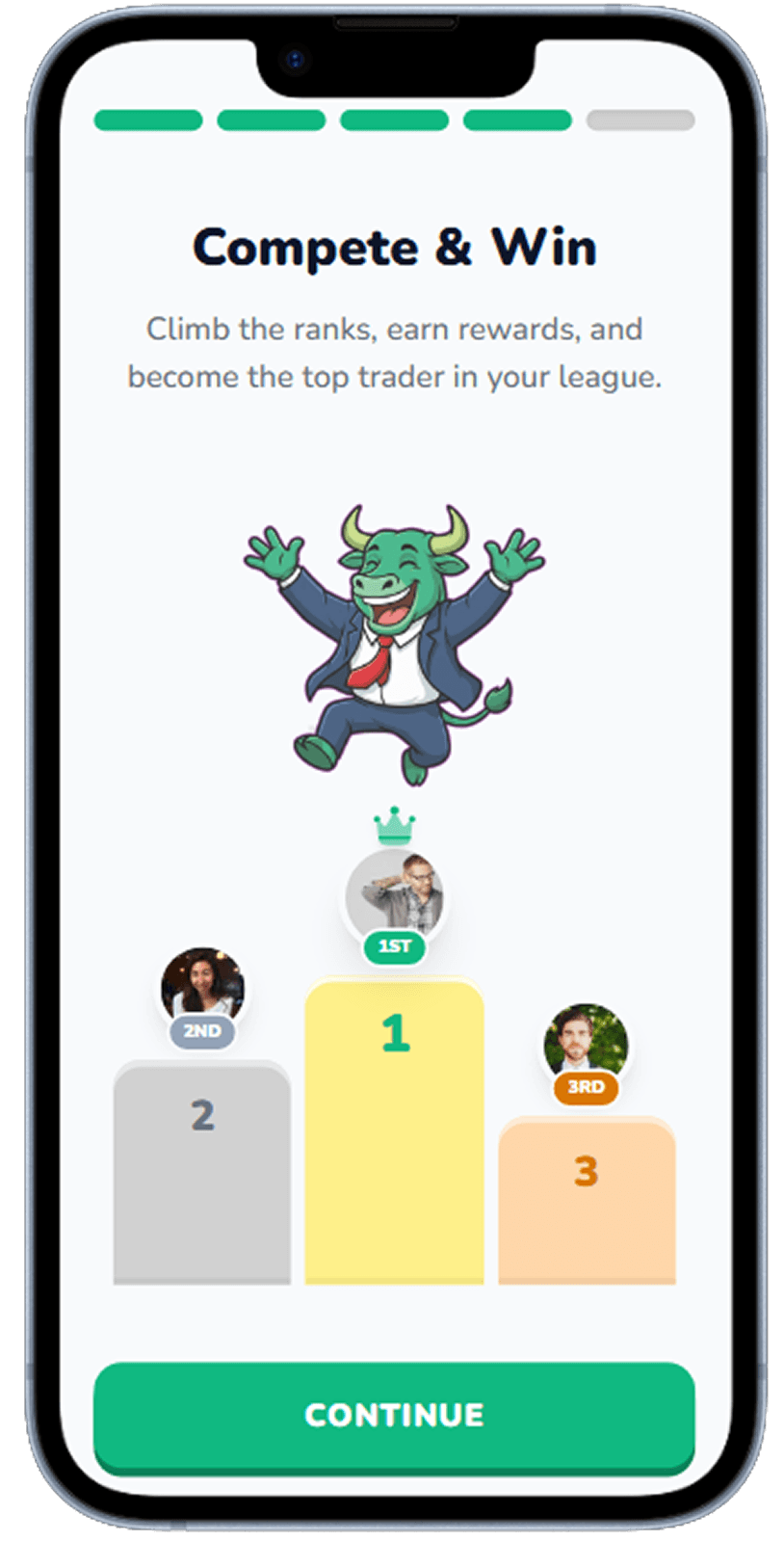
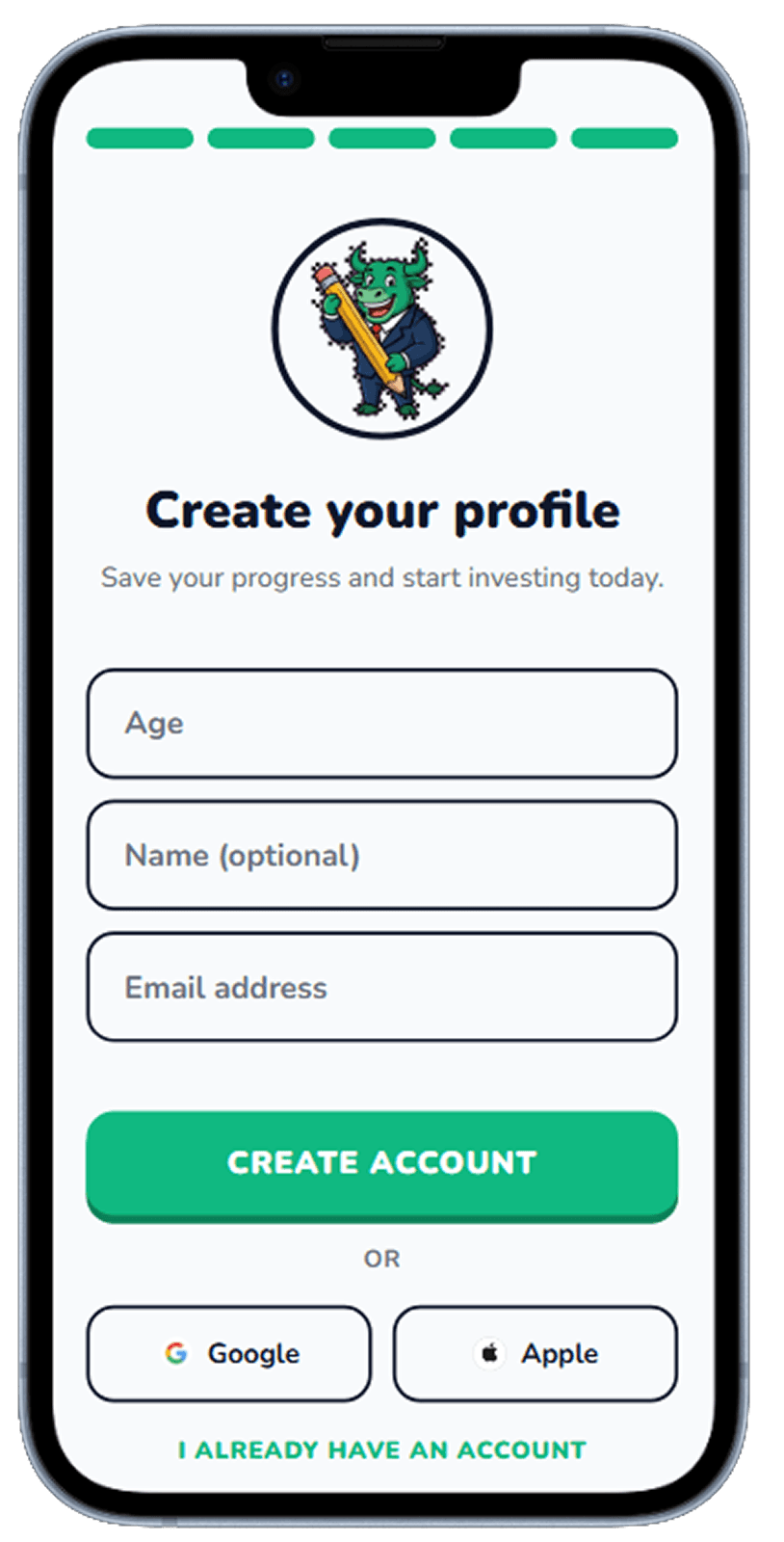
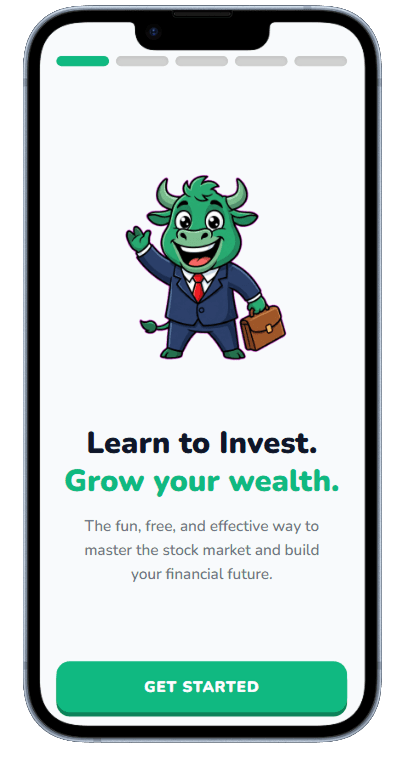
These onboarding screens focus on making trading education approachable for beginners. The flow uses a friendly bull mascot, candlestick visuals, short headlines, and clear next actions to teach value quickly before users start their first lesson.
Welcome Screen
First-touch screen introducing the app and what users will learn.
Welcome introduction with clear beginner-friendly positioning
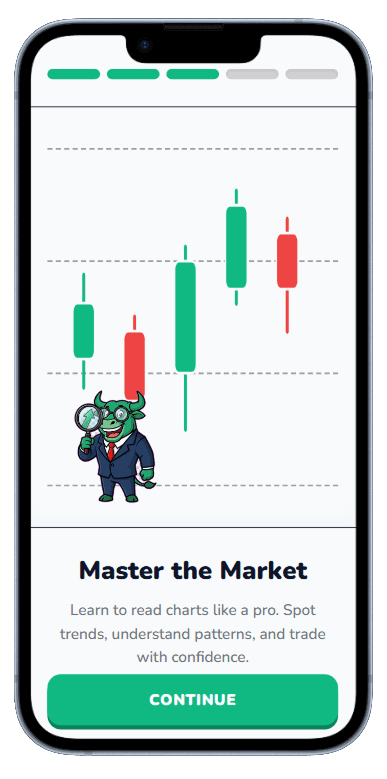
Master the Market
Concept screen centered on chart-reading confidence and market patterns.
Chart-focused education slide with mascot and progress indicator
Learning Focus
Personalization step selecting interests and starting difficulty.
Preference step to tailor beginner learning content
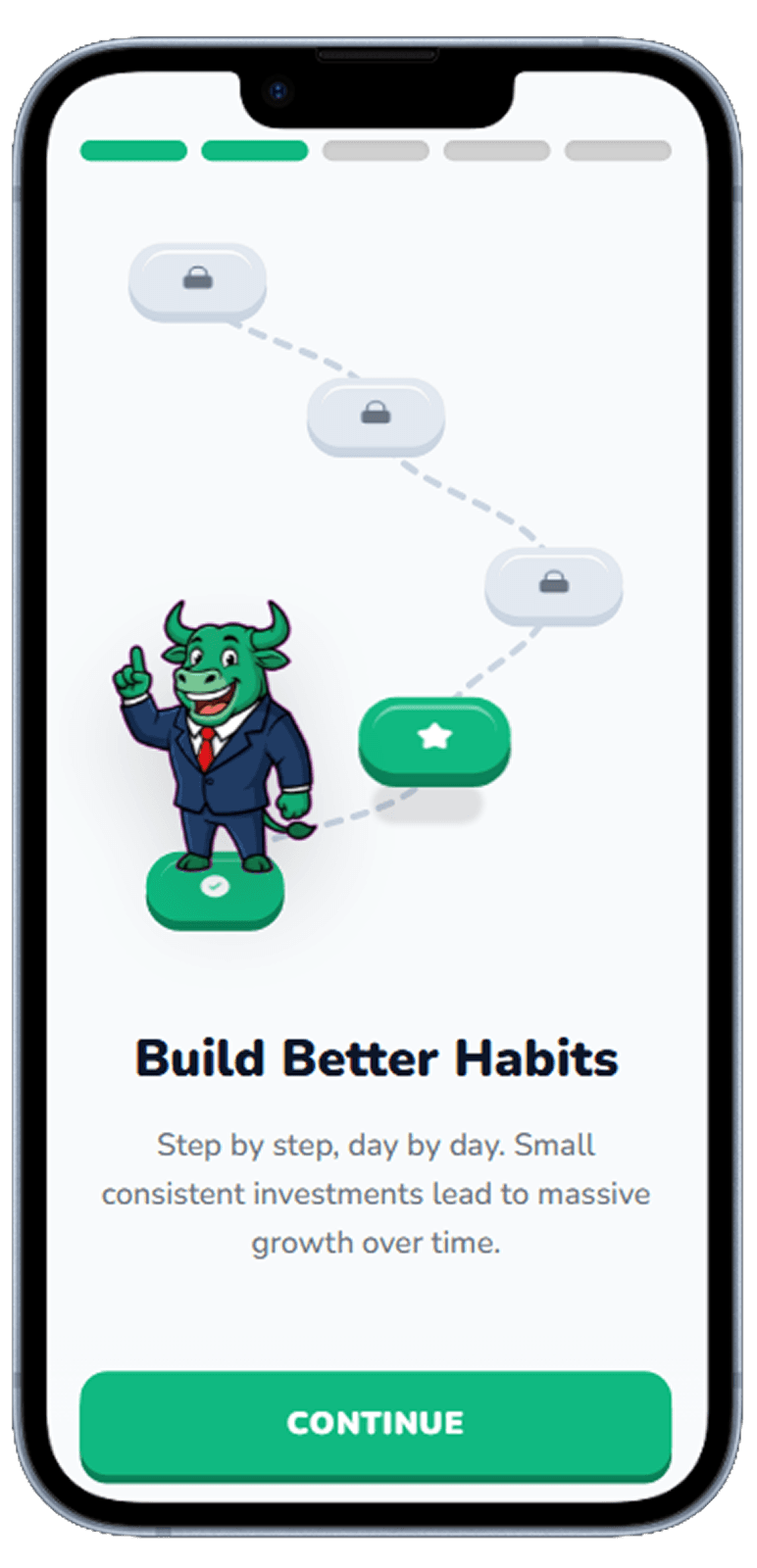
Daily Learning Plan
Simple daily habit setup for realistic and sustainable progress.
Daily practice setup to build learning consistency
Reminder Setup
Permission request framed around reminder value, not system prompts.
Reminder permission step tied to study streak consistency
Teach Before You Ask
Research consistently shows that users who reach their first "aha moment" — the instant when the app's core value clicks — within 60 seconds of install are four times more likely to become regular users. Every screen in your onboarding sequence should be evaluated against a single question: does this move the user closer to their first aha moment, or does it delay it? Account creation, permission requests, and preference settings that can be deferred should be — even if they feel important from a product perspective.
Friendly Tone for a Complex Topic
New users do not need to understand everything about your app before they start using it. They need to understand one thing: what's in it for them. Start with a bold, specific value proposition — not "the best app for X" but "learn one stock market concept per day in under 5 minutes." Then prove it immediately by taking them to the first piece of content or first meaningful action. Everything else — account creation, advanced settings, optional features — can wait for session two or three.
Five Screens Is Enough
iOS and Android system permission dialogs are jarring, undesigned interruptions. The antidote is the pre-permission screen — a custom screen you control that explains exactly why you are asking for the permission and what the user gains by granting it. "Enable notifications to get your daily learning reminder" converts at 40–60% higher rates than a cold system dialog. The same principle applies to location, camera, and contacts access. Show value first, ask for access second.
Related Resources
Generate your onboarding flow with Dezyn
Describe your app onboarding goals to Dezyn and generate a focused first-run flow with real screens.