Profile Screen UI Examples
Real profile/settings UI patterns - account identity, personal info, notifications, privacy, and app preferences.
These profile screens are centered on account management clarity. They combine identity at the top, grouped account actions in the middle, and preference controls below for fast, low-error settings updates.
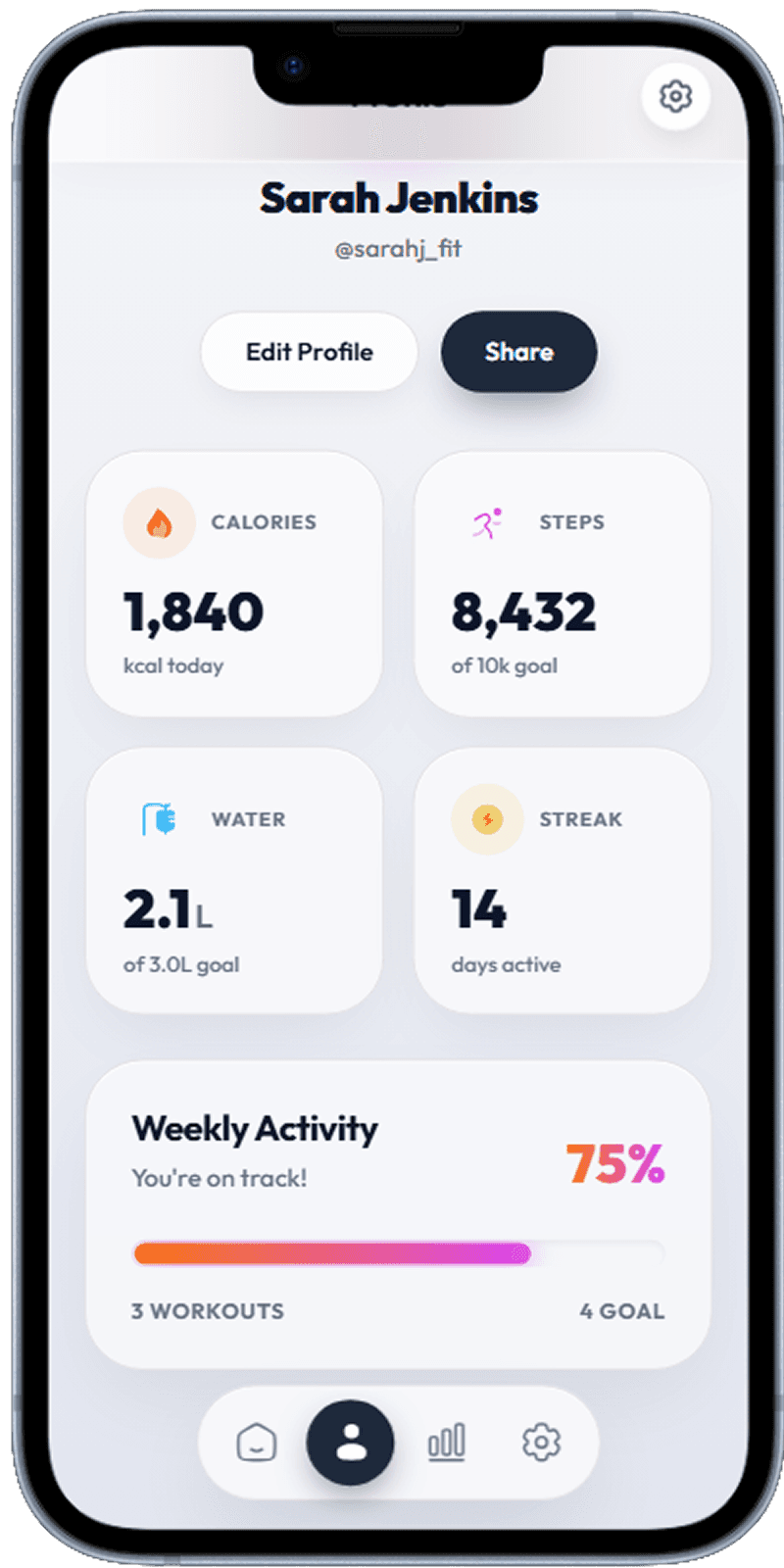
Profile Overview
Top-level profile hub that anchors account identity and navigation.
Profile header with avatar, email, and quick edit action
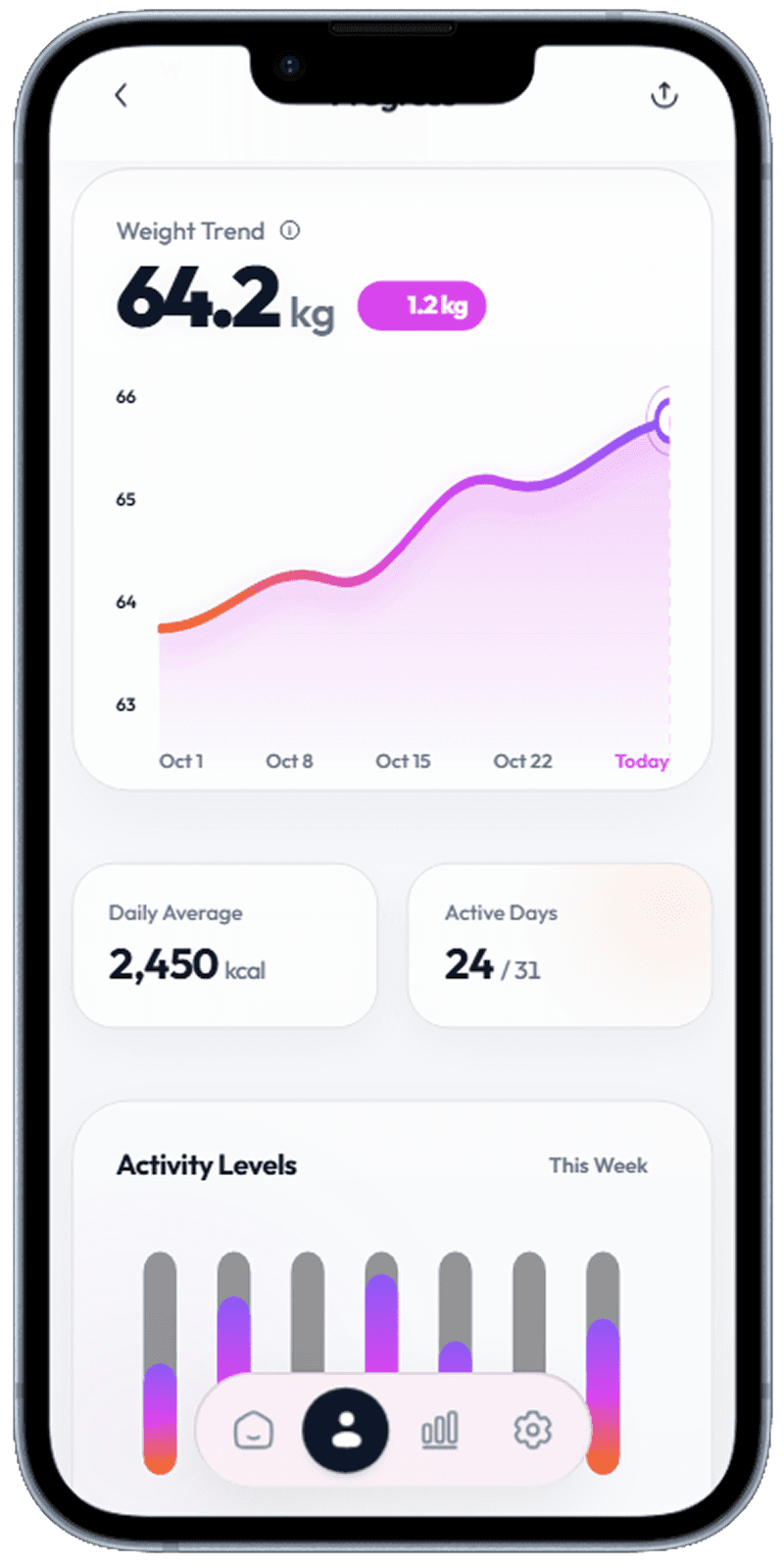
Personal Information
Personal data management with clear row-based actions.
Editable personal account details and profile metadata
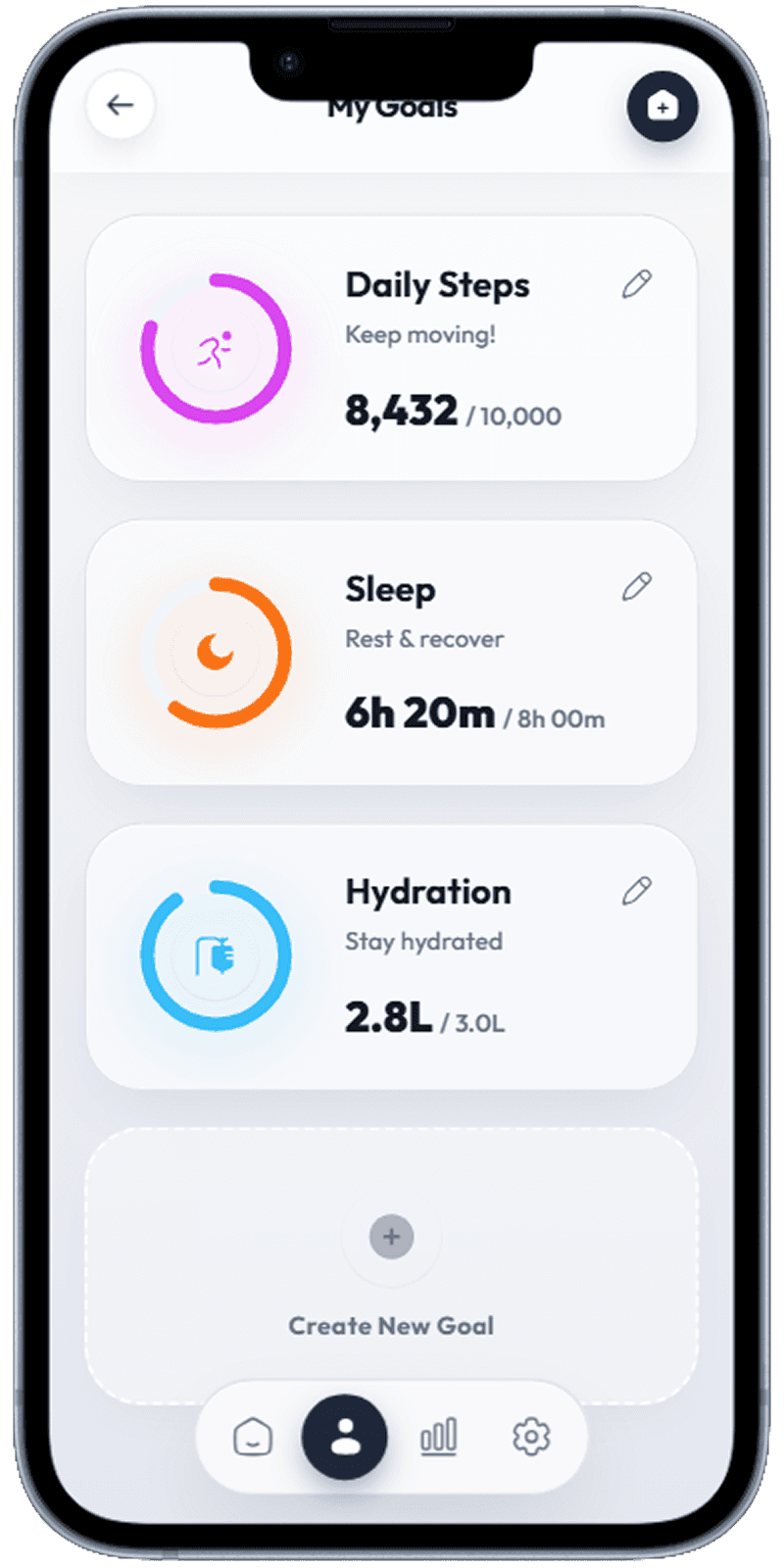
Notifications Settings
Notification controls grouped by type for faster preference updates.
Notification categories and preferences with simple toggles
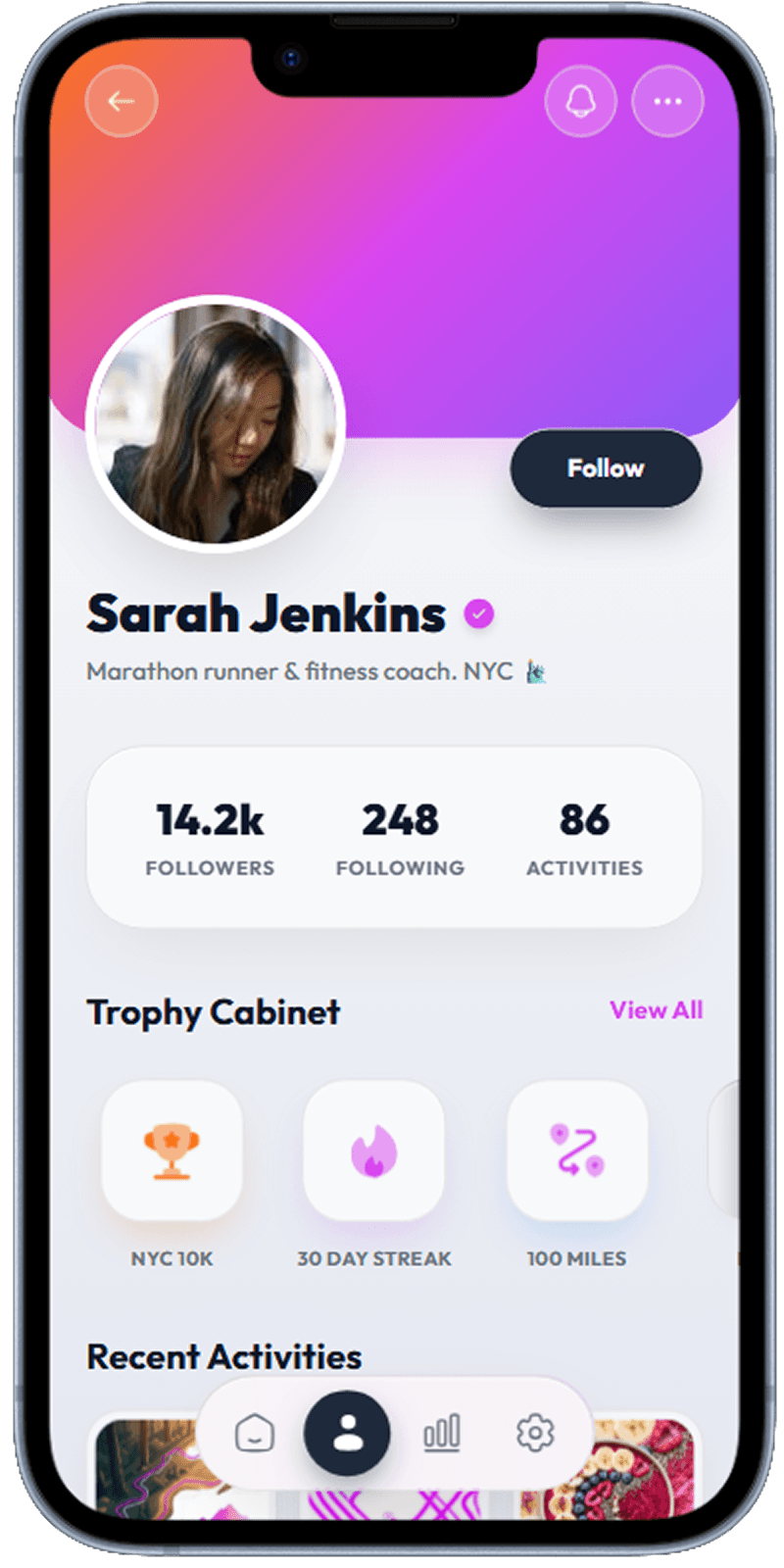
Privacy & Security
Privacy/security settings with explicit labels and safe defaults.
Security-sensitive account actions with clear hierarchy
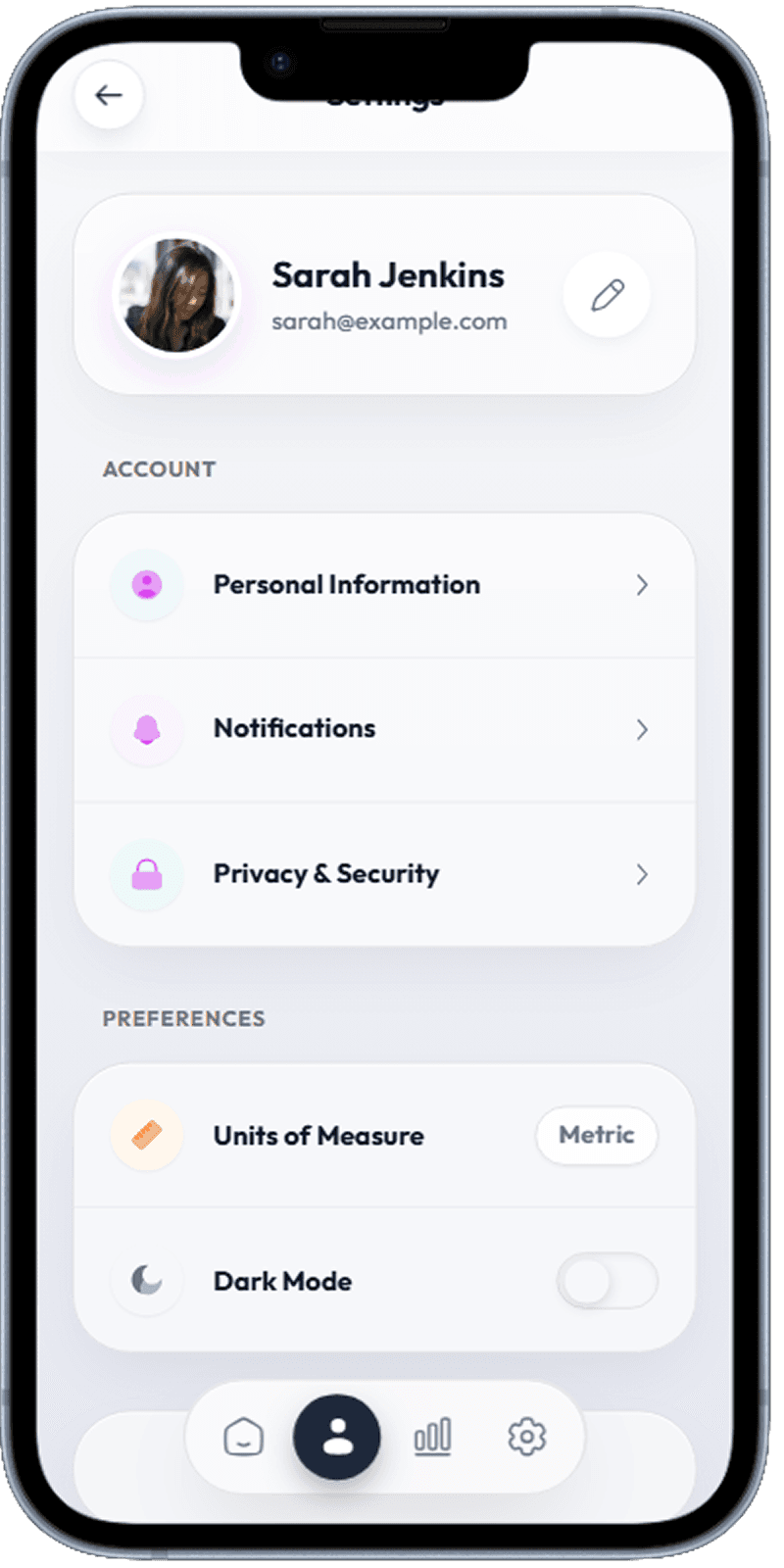
App Preferences
Preference management for display behavior and user comfort.
App-level preferences like units and theme mode
Group Settings by Intent
The strongest settings screens separate account, security, and preference actions into clear groups. This lowers scan time and reduces incorrect taps.
Surface the Most-Used Controls
Users most often change profile details, notifications, and privacy options. These should stay one to two taps away from the profile overview.
Use Soft Visual Hierarchy
Rounded containers, subtle dividers, and lightweight icons create a calm settings experience that still communicates priority and actionability.
Related Resources
Design your profile screens with Dezyn
Tell Dezyn about your account and settings requirements and generate polished profile flows instantly.